How to scan multiple pages into one PDF on Android
To scan multiple pages into one PDF on Android, keep adding pages to the same scan before you finish and save or export it. In Google Drive, tap Camera, capture a page, tap Add for each additional page, then Done, select .pdf, and Save, following Google's Android instructions.
The key is one document containing several pages, not a new document for every sheet. Below are two routes: Google Drive if you already have it, and Add page → Export PDF in Fair Scanner, made by this guide's publisher.
Option 1: Use Google Drive if it is already on your phone
You do not need another scanner app if Drive is already installed and its scanning workflow meets your needs. Do not assume every Android phone comes with it.
- Open Google Drive. Tap Camera at the bottom right.
- Photograph the first sheet. Review the capture before continuing.
- Tap Add for the next sheet. Repeat this inside the same scan until you have captured every page. This is the important step for keeping them together.
- Tap Done. Give the document a useful file name, such as
Meeting-notes-three-pages. - Select .pdf. Drive also offers .jpg, so check the format rather than assuming it is PDF.
- Choose Location if needed, then Save. This workflow saves the document to Google Drive, not necessarily your phone's Downloads folder.
These labels and the save destination come from Google Drive Help. Google describes its scans as searchable PDFs. That is a Drive feature, not a promise about every scanner app or the accuracy of recognized text.
Option 2: Keep the pages together in Fair Scanner
Fair Scanner supports multipage scanning and PDF export. Use this route if you want its document-on-your-phone workflow, rather than the Drive save route above.
- Start with New scan. Capture the first sheet and follow the scanner's prompts to return to the document.
- Review the page. If the crop misses an edge or includes too much background, adjust the corners and choose Apply. Save any editor changes with Save.
- Use Add page in that document. Capture each remaining sheet here. Do not return to the library and start a separate New scan for every sheet.
- Choose Export PDF. Once the pages are together, use the available sharing flow to choose where to send or save the file.
- Open the exported PDF before sending it. Count the pages and check that the text is legible, the edges are intact and the orientation is correct.
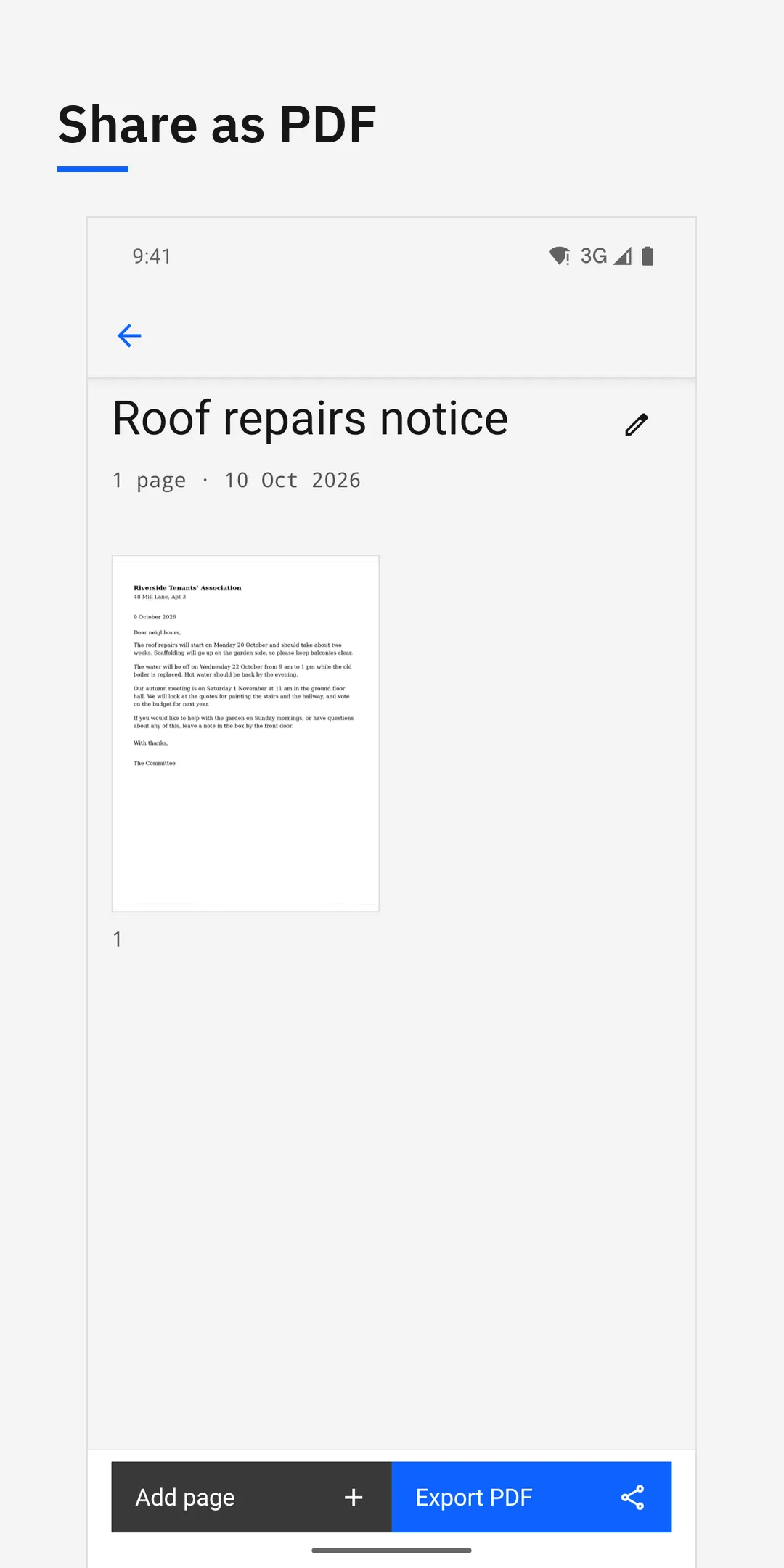
Fair Scanner's Android document screen has Add page and Export PDF controls. This example shows one saved page, not a completed multipage export.
Fair Scanner has no OCR: it does not recognize the text on your paper or turn it into searchable text. Its official product description also states that it has no cloud sync or folders. This guide covers new paper captures, not signing or combining existing PDFs.
Which route should you choose?
| What matters to you | Google Drive | Fair Scanner |
|---|---|---|
| Keeping new captures together | Add pages before Done and Save | Add page inside the same document, then Export PDF |
| Where the workflow leads | Saves to Google Drive | Keeps saved documents on the phone; export through the available sharing flow |
| Searchable scanned text | Google describes searchable PDFs | No OCR |
| Document allowance covered here | Not compared here | First 10 documents free, then a one-time unlock |
The Drive details are documented in Google Help; Fair Scanner's features and allowance are described on its product page. Choose based on the destination and text-recognition needs, not just whether both apps can produce a PDF.
A three-sheet check before you share
For a practice run, use three sheets of your own paper numbered 1, 2 and 3. This is a suggested check, not a reported test result:
- Capture sheet 1, then add sheets 2 and 3 within that same scan or document.
- Review each capture for cut-off text and rotation.
- Save or export as PDF.
- Open the result and confirm that all three pages appear in the intended order.
For a real document, count the source sheets first and compare that count with the finished PDF. A readable preview of the first page alone is not enough to check the whole file.
If you get separate files or the wrong output
One PDF per sheet: keep the next capture inside the current scan. In Drive, use Add before Done. In Fair Scanner, use Add page in the existing document instead of starting another one.
A JPG instead of a PDF: in Drive, select .pdf before saving. In Fair Scanner, use Export PDF.
Several PDFs already exist: combining existing files is a different task from capturing more paper pages. These instructions are not an import-and-combine workflow; use a tool that explicitly supports merging existing PDFs.
Frequently asked questions
Can I do this without installing another scanner?
Yes, if Google Drive is already installed and available to you, its documented Android workflow includes adding pages before saving as PDF. It is an app route, not a scanning feature guaranteed on every Android phone.
Is Fair Scanner free for a multipage document?
Its first 10 documents are free, followed by a one-time unlock. The allowance is documents, not 10 pages. Deleting a document does not restore a free slot, according to the official App Store listing. Check your store's current local unlock price before purchasing.
Can I search the text in a Fair Scanner PDF?
Fair Scanner has no OCR. If recognized text is essential, do not treat its PDF export as a substitute for a text-recognition workflow.
Where will I find the finished PDF?
For Drive, use the Drive location selected when saving. For Fair Scanner, use the destination you chose during export. There is no single Downloads path promised for both routes.
Does Fair Scanner work entirely offline on Android?
Saved documents can be opened offline, but initial scanner setup may require a component download. Its Google scanner component sends diagnostics and device identifiers to Google, as disclosed in the Android listing. Do not assume completely offline capture or zero third-party data collection.
Get Fair Scanner
If a straightforward capture-and-export workflow fits your needs, see Fair Scanner's features and limits, then get it on Google Play. It is also available for iPhone on the App Store.
This guide is published by Fair Scanner's developer. Fair Apps is not affiliated with Google.